


How to Create a Simple Project Plan in MS Project?
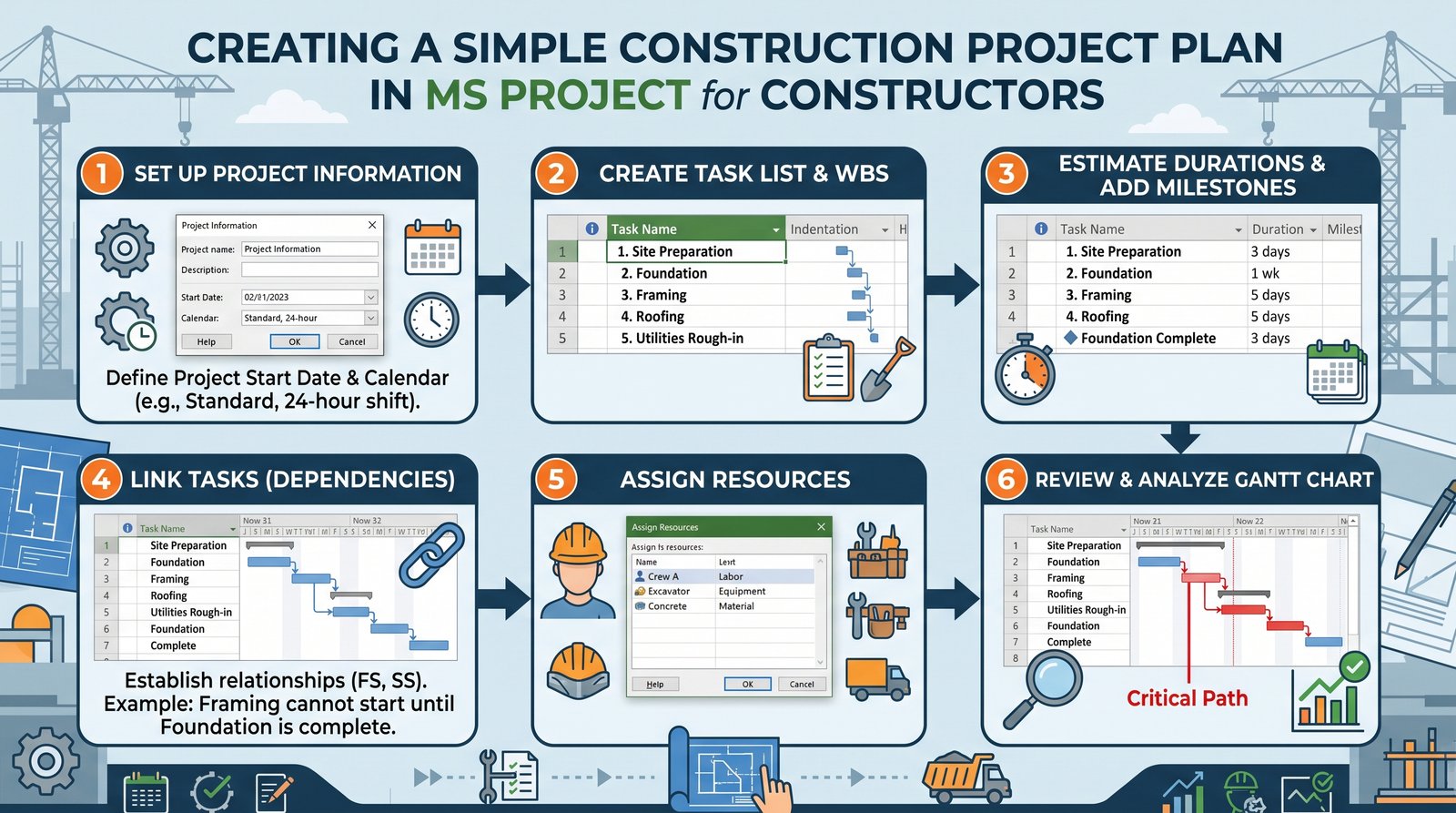
The planning of a big project is difficult when you have to consider many factors, such as dates, people, and tasks. When there is no clear project plan, the work can become confusing, time can be wasted, and it may seem like goals are very far away. Microsoft Project will be of great help in these situations. It's an organizational tool that shows the work that needs to get done, how it will start, and who is responsible for it. An easy project plan provides clear directions and ensures everyone stays on track.
MS Project often leaves beginners feeling unsure. The options on the screen are complex and overwhelming. Despite this, the results you get from learning basic concepts are impressive. It is sufficient to have a small or medium plan. It is a great way to stay on track, monitor time, and plan. The easy-to-understand words and illustrations in this guide make learning a pleasant experience.
This article provides a step-by-step guide to building a simple project plan with expert MS Project scheduling. It covers the following: setup, timelines, and resources. This is because the sections flow together naturally. At the end of this course, you will have a clear understanding and feel confident about creating your basic project plan.
The Correct Way to Add Tasks
In a plan, tasks are at the core. The task in a project plan represents the work needed to complete a particular piece. To begin, start by listing your major tasks in Task Name. Be sure to use simple, clear names. Don't use lengthy or unclear task titles.
Each task should have a clear order. The first job is usually planning or preparing. Usually, the final task represents project completion. Ensure you can easily track your work by keeping tasks to a manageable size. They are difficult to control and can hide any delays.
You can find a few simple examples of tasks here:
- Project planning
- Design work
- Development work
- Testing phase
- Final delivery
This list remains short. More details can be added in the future.
How To Get Started with Microsoft Project Setup?
Software needs to be set up before tasks can be added. Open MS Project. Then choose the blank project. A blank project will create a space that is ready for planning. It is important to first set the date that your project will begin. Project Information will be available under the Project tab. The correct start date should be entered here.
After that, you should check the date. MS Project's standard calendar has five days of work per week. Thus, only working days are counted for tasks. This option helps timelines remain realistic. This calendar will need to be modified if there is a change in the timeline of the project.
It is important to note that teams working with cost planning or budget support often follow guidance from a construction estimating company, since accurate time planning and task orders help improve cost control and work balance across the project lifecycle.
You can save your file by giving it a good name. The name of the file is crucial to avoid confusion. This setup is simple and prepares the project well for the entry of tasks and smooth planning.
Setting Task Duration and Dates

The duration of each task is important. Duration tells you how many workdays a certain task will require. MS Project's duration is calculated in workdays. In the Duration column, type in numbers like '5 days' or '3 days'. The software then automatically sets the date for both start and completion.
Be careful not to guess. Each task should be carefully considered. You still need time to fix problems or review a seemingly small task. The realistic length helps to avoid unnecessary stress. The rushed nature of work is caused by too short a duration.
MS Project enables you to link task dates in order. In the case of tasks that are dependent on each other, the task after which the task was completed will be the one to start. This scheduling automation saves time, reduces mistakes, and is more accurate. It updates the whole timeline as well when any changes occur.
Incorporating Task Relationships
How tasks relate to each other is shown by task relationships. The most frequent link is from Finish to Start. This is when a new task only begins after the end of an existing one. MS Project defaults to this behaviour when tasks are connected.
Then click the Link Tasks link. A connection is created between both tasks. The Gantt chart will then update automatically. When dates are changed, linked tasks become one.
Relations help project flow. These relationships prevent tasks from crossing in an unintended way. They can also be used to help you identify what tasks are most important for the overall deadline.
Adding Resources to a Project
Resources can be defined as people, material, or equipment used to perform a particular task. Tracking workloads and responsibilities is easier with resources. Click on the "Resource Sheet" to see names. Each resource may be a representation of a specific person, group, or organisation.
You can assign resources to specific tasks. To assign a resource, click a specific task. This will show who does what. The work is also distributed fairly, which helps reduce overload.
Resource assignment improves communication. Everyone knows what they are supposed to do. Managers have a clear picture of the workload. It is easier to progress with a clearer picture.
Gantt Chart Understanding
Gantt charts are one of the visual tools that MS Project uses. There are taskbars on the left side and timelines on the right. Each bar represents a specific task. Work time is measured by the length of each bar.
This view is useful for identifying overlaps. The connected tasks also change if the task that is moving changes. This update in real time allows for quick adjustments to plans. Share your plan with friends and family in a visually appealing way.
The plan can be explained to those who are not familiar with MS Project using the diagram. One glance tells the complete story. This helps to focus and improve the effectiveness of meetings.
Monitoring Progress During the Project

It is crucial to monitor progress once the work has begun. MS Project provides a way to change the task status. Input the percent completion for each item. You can see how much you have done by entering the percentage.
The ability to monitor progress can help identify delays in advance. Plans show the effects of lateness on other tasks. This allows immediate action before larger problems arise.
Keep the plan relevant by updating it regularly. Plan your project to change along with reality. This improves trust in your plan by establishing a habit.
Save it and Share It
Preventing loss by saving often is the best way to prevent it. MS Project files must be saved following each major upgrade. If you are sharing updates, be sure to use the version name. Avoid confusion when sharing changes.
To make it easier to see, the plan can be sent as either a PDF file or an image. It is possible to share the schedule with people who do not use MS Project. Communication and teamwork are improved by clearly sharing information.
Common Mistakes You Should Avoid
Many beginner mistakes have been made. These mistakes confuse and decrease the value of your plan. Being aware helps you avoid these mistakes.
- Details added too soon
- Set unrealistic deadlines
- It is not possible to ignore the task links
When you keep your plan as simple as possible, these potential problems are avoided. Progress is made in steps.
Benefits of a Simple Project Plan
A simple plan improves focus. Reduces confusion and helps save time. Clear expectations encourage teams to be more productive. Managers can make more informed decisions when they have a clear time frame.
Plans can be made simple and easily expanded. It's possible to create new tasks without stress. MS Project can be a very powerful tool for planning because it is flexible.
Conclusion
If you divide the process into easy-to-follow steps, it makes creating simple plans in MS Project easier. As you move from setting dates to adding tasks and tracking progress, each step builds on the last. The tool helps to maintain structure, clarity, and steady progression.
A simple plan does not mean weak planning. A smart plan is the key. Practice makes confidence grow, and the habit of planning is formed. MS Project will support success if it's used carefully and clearly.
FAQs
What can MS Project be used for?
MS Project makes it easy to manage tasks, timelines, and resources. Project flow is displayed visually.
Is MS Project a good choice for newbies?
Yes, simple plans can be beneficial to beginners. In order to develop confidence, it is best to start small.
How much time does it take for basic training?
The basic skills of planning take some practice. Simplicity makes learning easy.
Is a simple team project plan effective?
You are right; even small groups can be very effective. The team will be more focused and productive if they have clear dates and tasks.
